EKOBENNY Flash Utility Instructions
Before you start
- Use Chrome or Edge Browser (versions above 89). Firefox might work, but you'll need a very recent version (at least 151).
- Power off the device.
- Find the USB Type-C socket on the back of the device.
- Using a Type-A to Type-C USB cable, connect the device to a USB port on your PC. Make sure the cable is for data transfer, not just for power!
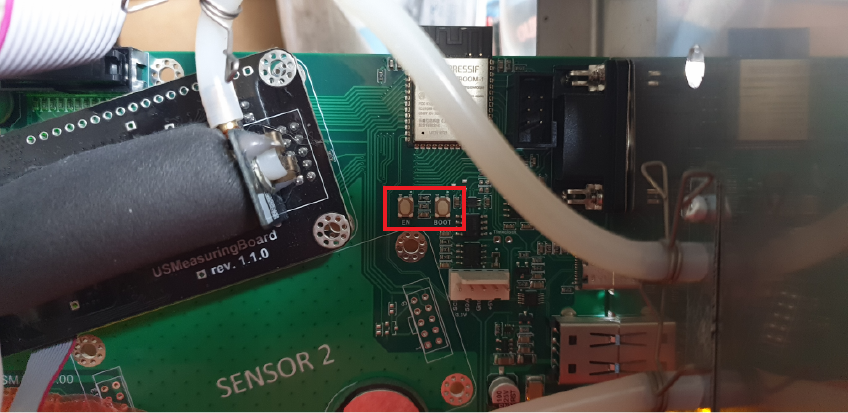
- Press and hold the BOOT button shown on the image below:
- Power on the device while holding the BOOT button. Keep holding the button for 1–2 seconds after you power on the device.
- Release the BOOT button. The device should now be in programming mode.
- Check the Device Manager on your PC – a new COM port should have appeared under "Ports (COM and LPT)". Note its number, e.g. COM3.
Using the utility
- Make sure Show Debug Log checkbox is NOT CHECKED. This is intended only for discovering problems during operation. If checked, the debug messages will flood the terminal and make it difficult to follow the progress.
- Choose a baudrate (speed) for the communication session. At first, try with the default (3000000). Choose a lower one only if you encounter problems during operation as this significantly reduces performance.
- Click Connect.
- Select the correct serial port when the browser asks. It should be listed like USB JTAG/serial debug unit (COM3) or similar.
- Click "Connect" in the dialog window.
- Wait until the utility reports that it is connected.
- Click Backup and Reset Storage Partition.
- Wait until the operation completes. The entire process may take several minutes, depending on your network speed. Please read the messages in the terminal window of the utility and be patient.
- Turn the device off and then back on.
Important notes
Do not disconnect power or unplug the USB cable while the operation is running.
If the operation fails, turn off the device and try again.